How to Build a Reliable macOS Menu Bar App with SwiftUI, AppKit, and SwiftData
A step-by-step architecture guide to status items, native popovers, SwiftData persistence, sleep-safe timers, calendar boundaries, inline editing, and testing.
Menu bar apps look small because they occupy very little screen space. Their architecture is not necessarily small.
A useful menu bar app must launch without a normal window, attach reliably to the active menu bar, keep one shared state tree alive, update without recreating its popover, respond immediately to keyboard and pointer input, persist data, survive system sleep, and remain readable inside a few hundred points of width.
This guide builds that architecture in layers.
We will use FocusStation, a native day-based task timer, as the working example. The goal is not to recreate every product feature. The goal is to understand the reusable structure behind a reliable macOS menu bar application.
The snippets are intentionally incremental. Each section introduces one architectural boundary; small styling details are omitted where they would hide that boundary. The complete, compiling implementation is linked at the end.
By the end, you will know how to:
- create a menu-bar-only macOS process;
- install an
NSStatusItemat the correct point in the AppKit lifecycle; - host a SwiftUI interface inside an
NSPopover; - share one observable view model between AppKit and SwiftUI;
- persist tasks with SwiftData;
- build a timestamp-based timer that does not drift;
- update the UI every second without treating timer callbacks as time;
- handle sleep, wake, quitting, and local midnight;
- model calendar days without assuming every day has 86,400 seconds;
- size a popover without triggering layout recursion;
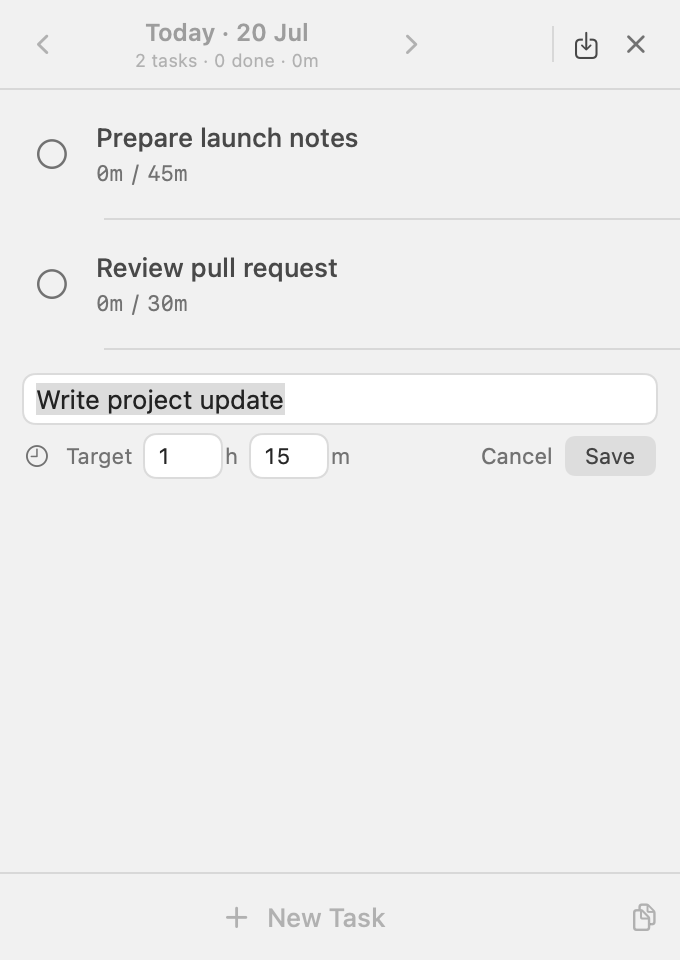
- implement reliable inline create and edit forms;
- test state transitions instead of only testing buttons;
- package and distribute the result.
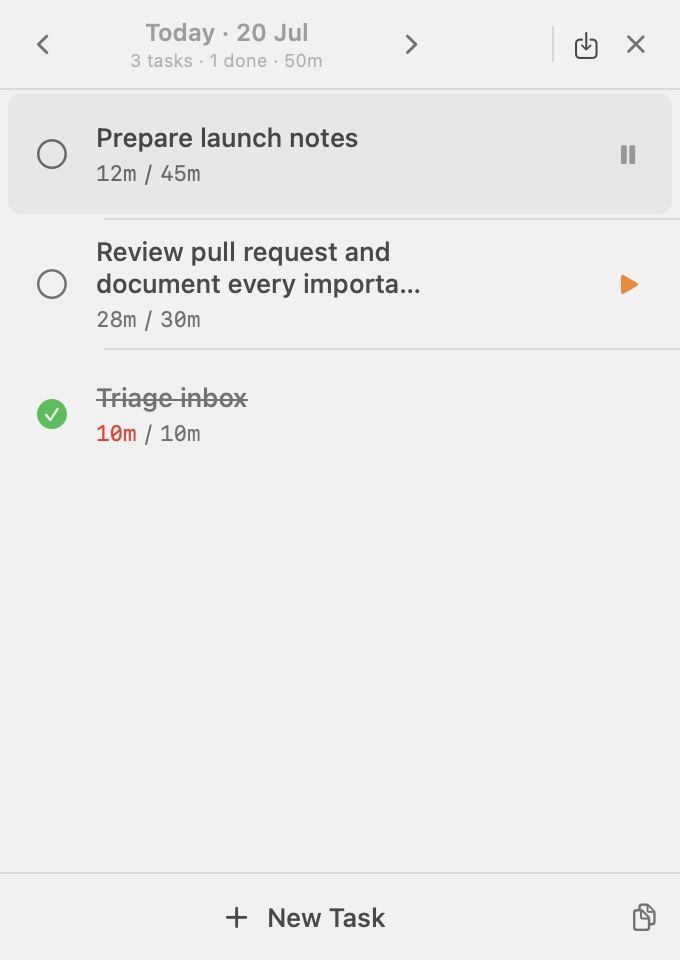
The architecture we are going to build
Before opening Xcode, define ownership.
FocusStation uses this dependency flow:
FocusStationApp
    └── FocusStationCoordinator
          ├── ModelContainer
          ├── TimerManager
          ├── TickGenerator
          └── MenuBarController
                ├── NSStatusItem
                ├── NSPopover
                └── DropdownViewModel
                      └── SwiftUI DropdownView
Data moves in one direction:
SwiftUI view
    ↓ user action
DropdownViewModel
    ↓ protocol method
TimerManager
    ↓ save
SwiftData
Live updates take a separate path:
TickGenerator
    ↓ invalidates display
MenuBarController and SwiftUI views
    ↓ read current value
Task.currentElapsed(at:)
This separation is important:
TimerManagerowns persisted mutations.DropdownViewModelowns selected-day and editor state.MenuBarControllerowns AppKit lifecycle and geometry.- SwiftUI views render state and send user intent.
TickGeneratorcauses redraws but never measures elapsed time.
When each layer owns one kind of state, debugging becomes much easier.
Prerequisites
The example uses:
- macOS 14 Sonoma or later;
- Xcode 16 or later;
- Swift 6;
- SwiftUI;
- AppKit;
- SwiftData;
- Observation;
- no third-party dependencies.
Create a new macOS App project in Xcode. Choose SwiftUI for the interface and Swift for the language.
A practical file layout is:
App/
    FocusStationApp.swift
    ModelContainer+App.swift
Models/
    Task.swift
Services/
    TimerManagerProtocol.swift
    TimerManager.swift
    TickGenerator.swift
    MenuBarController.swift
Utilities/
    LocalDay.swift
    TimeFormatter.swift
ViewModels/
    DropdownViewModel.swift
Views/
    DropdownView.swift
    TaskRowView.swift
The names are not important. The boundaries are.
Step 1: Make the process a menu-bar-only app
A normal macOS app appears in the Dock and owns a standard application menu. A menu-bar utility generally should not.
Add an Info.plist file and set:
<?xml version="1.0" encoding="UTF-8"?>
<!DOCTYPE plist PUBLIC "-//Apple//DTD PLIST 1.0//EN"
  "http://www.apple.com/DTDs/PropertyList-1.0.dtd">
<plist version="1.0">
<dict>
    <key>LSUIElement</key>
    <true/>
</dict>
</plist>
LSUIElement makes the process an agent application:
- it does not appear in the Dock;
- it does not show a normal app-switcher entry;
- its visible entry point is the status item you create.
Make sure the target's Info.plist File build setting points to this file.
This also means a failed status-item installation can make the app appear completely invisible. During development, put a breakpoint in the installation path before assuming the process failed to launch.
Checkpoint
Run the app. It should launch without a normal window or Dock icon. It will not have a menu-bar item yet.
Step 2: Create one process-lifetime dependency owner
Do not construct services inside SwiftUI views. Menu-bar views are opened and closed repeatedly, while the application process may live for days.
Create a coordinator that owns long-lived dependencies:
import AppKit
import SwiftData
import SwiftUI

@MainActor
final class AppCoordinator: NSObject {
    private let container: ModelContainer
    private let timerManager: TimerManager
    private let tickGenerator: TickGenerator
    private var menuBarController: MenuBarController?

    init(container: ModelContainer) {
        self.container = container
        self.timerManager = TimerManager(
            modelContext: container.mainContext
        )
        self.tickGenerator = TickGenerator()
        super.init()

        NotificationCenter.default.addObserver(
            self,
            selector: #selector(applicationDidFinishLaunching),
            name: NSApplication.didFinishLaunchingNotification,
            object: nil
        )

        NotificationCenter.default.addObserver(
            self,
            selector: #selector(applicationWillTerminate),
            name: NSApplication.willTerminateNotification,
            object: nil
        )
    }

    @objc private func applicationDidFinishLaunching() {
        perform(
            #selector(installMenuBar),
            with: nil,
            afterDelay: 0
        )
    }

    @objc private func installMenuBar() {
        guard menuBarController == nil else { return }

        menuBarController = MenuBarController(
            timerManager: timerManager,
            tickGenerator: tickGenerator
        )
    }

    @objc private func applicationWillTerminate() {
        timerManager.pauseAllRunningTasks()
    }
}
Why wait for NSApplication.didFinishLaunchingNotification and then schedule installation on the next run-loop turn?
Because the application needs to be attached to AppKit and an active screen before the status item is installed. Creating it too early can behave inconsistently during repeated Xcode launches.
The guards are equally important. The process must own exactly one menu-bar controller.
Wire the coordinator into the SwiftUI app entry point:
@main
struct MenuTimerApp: App {
    private let coordinator: AppCoordinator

    init() {
        guard let container = ModelContainer.appContainer else {
            fatalError("Failed to create ModelContainer")
        }

        coordinator = AppCoordinator(container: container)
    }

    var body: some Scene {
        MenuBarExtra(isInserted: .constant(false)) {
            EmptyView()
        } label: {
            EmptyView()
        }
    }
}
The inert scene satisfies SwiftUI's App requirement. The visible status item and popover are owned by MenuBarController.
Step 3: Configure SwiftData once
Define a single model container for the process:
import SwiftData

extension ModelContainer {
    static let appContainer: ModelContainer? = {
        let schema = Schema([
            Task.self
        ])

        let configuration = ModelConfiguration(
            isStoredInMemoryOnly: false,
            allowsSave: true
        )

        return try? ModelContainer(
            for: schema,
            configurations: [configuration]
        )
    }()
}
For tests, create a separate in-memory configuration. Production and tests should use the same model types but not the same physical store.
The key rule is simple:
Create the production container once, then pass its context into the service that owns persistence.
Avoid creating a ModelContainer inside a view. Multiple containers can make two parts of the interface appear to disagree about saved state.
Step 4: Model timer state as durable facts
A timer task needs two kinds of elapsed time:
- elapsed time from completed sessions;
- elapsed time from the currently active session.
Persist the first and derive the second:
import Foundation
import SwiftData

@Model
final class Task: Identifiable {
    var id: UUID
    var name: String
    var accumulatedElapsed: TimeInterval
    var isRunning: Bool
    var isCompleted: Bool
    var displayOrder: Int
    var startedAt: Date?
    var targetTime: TimeInterval?
    var createdAt: Date
    var scheduledDayKey: String?

    init(
        name: String,
        targetTime: TimeInterval? = nil,
        displayOrder: Int = 0,
        scheduledDayKey: String? = nil
    ) {
        id = UUID()
        self.name = name
        accumulatedElapsed = 0
        isRunning = false
        isCompleted = false
        self.displayOrder = displayOrder
        startedAt = nil
        self.targetTime = targetTime
        createdAt = .now
        self.scheduledDayKey = scheduledDayKey
    }

    func currentElapsed(
        at date: Date = .now
    ) -> TimeInterval {
        let safeAccumulated = accumulatedElapsed.isFinite
            ? max(0, accumulatedElapsed)
            : 0

        guard isRunning, let startedAt else {
            return safeAccumulated
        }

        let sessionElapsed = date.timeIntervalSince(startedAt)
        guard sessionElapsed.isFinite else {
            return safeAccumulated
        }

        return safeAccumulated + max(0, sessionElapsed)
    }
}
The sanitisation protects the UI from corrupt or non-finite persisted values. A negative duration, NaN, or infinity should not break formatting or layout.
Do not persist a counter that increments every second:
// Avoid this
elapsed += 1
Timer callbacks can be late or skipped. The Mac can sleep. The main run loop can be busy. A callback does not prove that exactly one second passed.
Timestamps do.
Step 5: Put all timer mutations behind a service
Define the operations the interface needs:
protocol TimerManagerProtocol: AnyObject {
    var tasks: [Task] { get }
    var errorMessage: String? { get }

    func start(task: Task)
    func pause(task: Task)
    func resume(task: Task)
    func createTask(
        name: String,
        targetTime: TimeInterval?,
        displayOrder: Int,
        scheduledDayKey: String
    ) -> Task
    func update(
        task: Task,
        name: String,
        targetTime: TimeInterval?
    )
    func complete(task: Task)
    func delete(task: Task)
    func reorderTasks(_ tasks: [Task])
    func pauseAllRunningTasks()
}
The implementation owns SwiftData:
import Observation
import SwiftData

@Observable
final class TimerManager: TimerManagerProtocol {
    private(set) var tasks: [Task] = []
    private(set) var errorMessage: String?

    private let modelContext: ModelContext

    init(modelContext: ModelContext) {
        self.modelContext = modelContext
        refreshTasks()
    }

    func start(task: Task) {
        guard !task.isRunning, !task.isCompleted else { return }

        pauseOtherRunningTasks(except: task)
        task.isRunning = true
        task.startedAt = .now
        saveChanges()
    }

    func pause(task: Task) {
        guard task.isRunning else { return }

        task.accumulatedElapsed = task.currentElapsed()
        task.isRunning = false
        task.startedAt = nil
        saveChanges()
    }

    func resume(task: Task) {
        guard !task.isRunning, !task.isCompleted else { return }

        pauseOtherRunningTasks(except: task)
        task.isRunning = true
        task.startedAt = .now
        saveChanges()
    }

    private func pauseOtherRunningTasks(
        except selectedTask: Task
    ) {
        for task in tasks
        where task.isRunning && task.id != selectedTask.id {
            task.accumulatedElapsed = task.currentElapsed()
            task.isRunning = false
            task.startedAt = nil
        }
    }
}
Starting or resuming a task pauses every other running task inside the same mutation boundary. The interface never has to coordinate two task rows.
Persist through one helper:
private func saveChanges() {
    do {
        try modelContext.save()
        errorMessage = nil
    } catch {
        modelContext.rollback()
        errorMessage = """
        FocusStation couldn’t save that change.
        Your previously saved data is unchanged.
        """
    }

    refreshTasks()
}
Rollback matters. If saving fails, the interface should return to the last persisted state rather than continue displaying a mutation that never reached disk.
Checkpoint
At this stage you can unit-test task creation, start, pause, resume, single-timer enforcement, and persistence without building the menu-bar UI.
Step 6: Create a display ticker without making it the clock
The timer model calculates elapsed time from dates, but the UI still needs a reason to redraw.
Create a one-second observable ticker:
import Foundation
import Observation

@MainActor
@Observable
final class TickGenerator {
    var value = 0
    private var timer: Timer?

    init() {
        let timer = Timer(
            timeInterval: 1,
            target: self,
            selector: #selector(increment),
            userInfo: nil,
            repeats: true
        )

        RunLoop.main.add(timer, forMode: .common)
        timer.fire()
        self.timer = timer
    }

    @objc private func increment() {
        value &+= 1
    }

    deinit {
        MainActor.assumeIsolated {
            timer?.invalidate()
        }
    }
}
A SwiftUI timer label observes the tick and derives the real value:
struct ElapsedTimeView: View {
    let task: Task
    let tickGenerator: TickGenerator

    var body: some View {
        let _ = tickGenerator.value

        Text(TimeFormatter.format(task.currentElapsed()))
            .fontDesign(.monospaced)
    }
}
If one tick is delayed by two seconds, the next render still displays the correct duration because currentElapsed() compares absolute dates.
This is the distinction to preserve:
Tick = “render again”
Timestamp = “what time is it?”
Step 7: Install a native status item and popover
Now build the visible shell:
import AppKit
import Observation
import SwiftUI

@MainActor
final class MenuBarController {
    private let timerManager: any TimerManagerProtocol
    private let tickGenerator: TickGenerator
    private let dropdownViewModel: DropdownViewModel

    private var statusItem: NSStatusItem?
    private var popover: NSPopover?

    init(
        timerManager: any TimerManagerProtocol,
        tickGenerator: TickGenerator
    ) {
        self.timerManager = timerManager
        self.tickGenerator = tickGenerator
        self.dropdownViewModel = DropdownViewModel(
            timerManager: timerManager
        )

        setupStatusBar()
        observeTicks()
        observeTasks()
    }
}
The controller creates one shared view model. This instance must survive popover closing, reopening, and timer updates.
Set up the native controls:
private func setupStatusBar() {
    let item = NSStatusBar.system.statusItem(withLength: 24)
    item.isVisible = true
    statusItem = item

    guard let button = item.button else { return }

    button.target = self
    button.action = #selector(togglePopover)
    button.sendAction(on: [.leftMouseUp])
    button.image = NSImage(
        systemSymbolName: "brain.head.profile",
        accessibilityDescription: "FocusStation"
    )
    button.image?.isTemplate = true

    let popover = NSPopover()
    popover.behavior = .transient
    popover.animates = false
    popover.contentSize = NSSize(width: 340, height: 188)
    popover.contentViewController = NSHostingController(
        rootView: DropdownView(
            viewModel: dropdownViewModel,
            tickGenerator: tickGenerator
        )
    )

    self.popover = popover
}
Apple's NSStatusItem documentation covers the object installed in the system menu bar; NSPopover owns the transient window presented from it.
Toggle it from the status-bar button:
@objc private func togglePopover() {
    guard
        let popover,
        let button = statusItem?.button
    else {
        return
    }

    if popover.isShown {
        popover.performClose(nil)
        return
    }

    dropdownViewModel.refreshTasks()
    applyPopoverSize(animated: false)

    NSApp.activate(ignoringOtherApps: true)
    popover.show(
        relativeTo: popoverAnchorRect(for: button),
        of: button,
        preferredEdge: .minY
    )

    popover.contentViewController?.view.window?.makeKey()
}
NSApp.activate and makeKey() help the hosted SwiftUI fields receive keyboard focus immediately.
Do not rebuild the NSHostingController every second. Recreating it destroys focus, hover state, scroll position, and transient editor state.
Checkpoint
Run the app. You should see the status item. Clicking it should open and close an empty SwiftUI popover.
Step 8: Give SwiftUI one shared view model
The view model should own interface policy, not persistence implementation:
@Observable
final class DropdownViewModel {
    private(set) var tasks: [Task] = []
    var editor: TaskEditorState?

    private let timerManager: any TimerManagerProtocol

    init(timerManager: any TimerManagerProtocol) {
        self.timerManager = timerManager
        refreshTasks()
    }

    func refreshTasks() {
        tasks = timerManager.tasks
    }

    func startTask(_ task: Task) {
        timerManager.start(task: task)
        refreshTasks()
    }

    func pauseTask(_ task: Task) {
        timerManager.pause(task: task)
        refreshTasks()
    }
}
Inject that exact instance into SwiftUI:
struct DropdownView: View {
    private let tickGenerator: TickGenerator
    @State private var viewModel: DropdownViewModel

    init(
        viewModel: DropdownViewModel,
        tickGenerator: TickGenerator
    ) {
        self.tickGenerator = tickGenerator
        _viewModel = State(initialValue: viewModel)
    }

    var body: some View {
        VStack(spacing: 0) {
            header
            Divider()
            taskList
            footer
        }
        .frame(width: PopoverLayout.width)
        .background(.regularMaterial)
        .onAppear(perform: viewModel.refreshTasks)
    }
}
Using the controller-owned instance is more important than the exact observation syntax. The status item and popover now operate over one state graph.
Step 9: Build stable rows before adding interaction
Menu-bar interfaces have very little horizontal space. If controls appear and disappear without reserved columns, task names move whenever the pointer enters a row.
Define geometry:
enum PopoverLayout {
    static let width: CGFloat = 340
    static let minimumHeight: CGFloat = 188
    static let maximumHeight: CGFloat = 480
    static let headerHeight: CGFloat = 44
    static let footerHeight: CGFloat = 44
    static let taskRowHeight: CGFloat = 64
    static let editorRowHeight: CGFloat = 76
}
Use fixed control slots:
struct TaskRowView: View {
    let task: Task
    let tickGenerator: TickGenerator

    @State private var isHovered = false

    var body: some View {
        HStack(spacing: 8) {
            completionButton
                .frame(width: 28, height: 28)

            VStack(alignment: .leading, spacing: 3) {
                Text(task.name)
                    .font(.system(size: 13, weight: .medium))
                    .lineLimit(2)
                    .truncationMode(.tail)
                    .help(task.name)

                ElapsedTimeView(
                    task: task,
                    tickGenerator: tickGenerator
                )
            }

            Spacer(minLength: 4)

            HStack(spacing: 4) {
                editButton
                deleteButton
                timerButton
            }
            .frame(width: 92, alignment: .trailing)
        }
        .padding(.horizontal, 12)
        .frame(height: PopoverLayout.taskRowHeight)
        .contentShape(Rectangle())
        .onHover { isHovered = $0 }
    }
}
Set edit and delete opacity to zero when they are unavailable, but keep their space:
HStack(spacing: 4) {
    editButton
    deleteButton
}
.opacity(isHovered ? 1 : 0)
.allowsHitTesting(isHovered)
This prevents the title and timer control from shifting on hover.
Use at least 28×28-point hit regions, even if the visible symbol is smaller. Add .help(...) and accessibility labels to every icon-only control.
Step 10: Calculate popover height from state
A fixed-height popover looks empty with one task and cramped with twenty. Measuring the live view during layout can create recursion.
Calculate height from known row sizes:
extension PopoverLayout {
    static func preferredHeight(
        taskCount: Int,
        isCreating: Bool,
        isEditing: Bool
    ) -> CGFloat {
        let safeTaskCount = max(0, taskCount)

        var contentHeight: CGFloat = safeTaskCount == 0
            ? 100
            : CGFloat(safeTaskCount) * taskRowHeight

        if isCreating {
            contentHeight += editorRowHeight
        } else if isEditing {
            contentHeight += editorRowHeight - taskRowHeight
        }

        let desired =
            headerHeight
            + footerHeight
            + 2
            + contentHeight

        return min(
            max(desired, minimumHeight),
            maximumHeight
        )
    }
}
Schedule one resize on the next main-actor turn:
private func resizeVisiblePopover() {
    guard let popover, popover.isShown else { return }
    guard !isPopoverResizeScheduled else { return }

    isPopoverResizeScheduled = true

    Swift.Task { @MainActor [weak self] in
        await Swift.Task.yield()
        guard let self else { return }

        self.isPopoverResizeScheduled = false
        self.applyPopoverSize(animated: true)
    }
}
Do not call layoutSubtreeIfNeeded() while AppKit is already laying out the popover. FocusStation reached this architecture after forced layout produced:
It's not legal to call -layoutSubtreeIfNeeded on a view
which is already being laid out.
Let long lists scroll:
ScrollView {
    LazyVStack(spacing: 0) {
        ForEach(viewModel.tasks) { task in
            TaskRowView(
                task: task,
                tickGenerator: tickGenerator
            )
        }
    }
}
.scrollIndicators(.hidden)
The popover remains between 188 and 480 points. Content scrolls only after reaching the maximum.
Step 11: Use one inline editor for create and edit
Create and edit should not have separate focus architectures.
Define transient editor state:
struct TaskEditorState: Identifiable {
    enum Mode: Equatable {
        case create
        case edit(taskID: UUID)
    }

    let id: UUID
    let mode: Mode
    var name: String
    var hours: Int
    var minutes: Int

    init(
        id: UUID = UUID(),
        mode: Mode = .create,
        name: String = "",
        hours: Int = 0,
        minutes: Int = 0
    ) {
        self.id = id
        self.mode = mode
        self.name = name
        self.hours = hours
        self.minutes = minutes
    }
}
The session ID prevents stale bindings from restoring a closed editor:
func updateEditor(_ updatedEditor: TaskEditorState) {
    guard editor?.id == updatedEditor.id else { return }
    editor = updatedEditor
}
This matters because a field callback can arrive after Save has already persisted the task and set editor = nil. Without identity checking, that late callback can put the editor back on screen. In create mode, clicking Save again can create a duplicate.
Use one view:
struct TaskEditorRow: View {
    private enum FocusedField: Hashable {
        case name
        case hours
        case minutes
    }

    @Binding var editor: TaskEditorState
    let onSave: () -> Void
    let onCancel: () -> Void

    @FocusState private var focusedField: FocusedField?

    var body: some View {
        VStack(alignment: .leading, spacing: 6) {
            TextField("Task name", text: $editor.name)
                .textFieldStyle(.roundedBorder)
                .focused($focusedField, equals: .name)
                .overlay(focusOutline(for: .name))
                .onSubmit(saveIfValid)

            HStack {
                durationFields
                Spacer()

                Button("Cancel", action: onCancel)
                    .keyboardShortcut(.cancelAction)

                Button("Save", action: saveIfValid)
                    .buttonStyle(.borderedProminent)
                    .keyboardShortcut(.defaultAction)
            }
        }
        .frame(height: PopoverLayout.editorRowHeight)
        .onAppear(perform: focusNameField)
        .onExitCommand(perform: onCancel)
    }
}
The duration controls are ordinary bound numeric fields. Clamp minutes to 0...59, keep hours nonnegative, and keep validation in one place:
private var canSave: Bool {
    !editor.name
        .trimmingCharacters(in: .whitespacesAndNewlines)
        .isEmpty
}

private var minuteBinding: Binding<Int> {
    Binding(
        get: { editor.minutes },
        set: { editor.minutes = min(max(0, $0), 59) }
    )
}

private func durationField(
    value: Binding<Int>,
    suffix: String,
    field: FocusedField
) -> some View {
    HStack(spacing: 2) {
        TextField("0", value: value, format: .number)
            .textFieldStyle(.roundedBorder)
            .frame(width: 38)
            .focused($focusedField, equals: field)
            .overlay(focusOutline(for: field))

        Text(suffix)
            .foregroundStyle(.secondary)
    }
}

private var durationFields: some View {
    Group {
        durationField(
            value: Binding(
                get: { editor.hours },
                set: { editor.hours = max(0, $0) }
            ),
            suffix: "h",
            field: .hours
        )

        durationField(
            value: minuteBinding,
            suffix: "m",
            field: .minutes
        )
    }
}

private func saveIfValid() {
    guard canSave else { return }
    onSave()
}
Focus on the next turn:
private func focusNameField() {
    Swift.Task { @MainActor in
        await Swift.Task.yield()
        focusedField = .name
    }
}
FocusState is bidirectional: changing focus updates the value, and assigning the value programmatically moves focus. The next-turn handoff matters because the field must already be attached to the hosted view hierarchy.
Draw an explicit focus indicator:
private func focusOutline(
    for field: FocusedField
) -> some View {
    RoundedRectangle(cornerRadius: 5)
        .stroke(
            focusedField == field
                ? Color.accentColor
                : Color.clear,
            lineWidth: 2
        )
        .allowsHitTesting(false)
}
Save must be atomic:
@discardableResult
func saveEditor() -> Bool {
    guard let editor else { return false }

    let name = editor.name
        .trimmingCharacters(in: .whitespacesAndNewlines)

    guard !name.isEmpty else { return false }

    switch editor.mode {
    case .create:
        createTask(from: editor, name: name)

    case .edit(let taskID):
        updateTask(taskID, from: editor, name: name)
    }

    self.editor = nil
    refreshTasks()
    return true
}
One interaction persists once and closes the editor once.
Step 12: Build an adaptive status-bar label
When idle, FocusStation shows only an icon. When a task is active or paused, it shows:
[icon] Task name… 28m / 45mThe time suffix is more important than the complete task name. Reserve time width first, then truncate the name into the remaining space.
Cap the status item:
private enum StatusBarLayout {
    static let minimumWidth: CGFloat = 24
    static let maximumWidth: CGFloat = 260
    static let chromeWidth: CGFloat = 38
    static let horizontalPadding: CGFloat = 8
}
Update the button:
private func updateStatusButton(
    _ button: NSStatusBarButton,
    task: Task?
) {
    guard let task else {
        button.image = NSImage(
            systemSymbolName: "brain.head.profile",
            accessibilityDescription: "FocusStation"
        )
        button.image?.isTemplate = true
        button.imagePosition = .imageOnly
        button.attributedTitle = NSAttributedString(string: "")
        button.toolTip = "FocusStation"
        return
    }

    button.image = NSImage(
        systemSymbolName: "timer",
        accessibilityDescription: task.name
    )
    button.image?.isTemplate = true
    button.imagePosition = .imageLeading
    button.attributedTitle = attributedTitle(for: task)
    button.toolTip = tooltip(for: task)
}
Use an attributed title so elapsed time can be green, orange, or red while the name and target remain readable:
- green: within target;
- orange: paused;
- red: overdue.
Recalculate the popover anchor after changing status-item width:
private func popoverAnchorRect(
    for button: NSStatusBarButton
) -> NSRect {
    NSRect(
        x: button.bounds.midX - 0.5,
        y: button.bounds.minY,
        width: 1,
        height: button.bounds.height
    )
}
Without this, the arrow can remain aligned to the old icon-only width after the status item expands.
Step 13: Add local calendar days safely
If your app is not day-specific, you can stop here. For planners, history tools, and daily timers, avoid storing “tomorrow” as now + 86_400.
A local calendar day can contain 23, 24, or 25 hours around daylight-saving transitions.
Represent day identity with a stable key:
struct LocalDay: Hashable, Comparable, Identifiable {
    let key: String

    var id: String { key }

    init(
        date: Date,
        calendar: Calendar = .autoupdatingCurrent
    ) {
        var localCalendar = Calendar(identifier: .gregorian)
        localCalendar.timeZone = calendar.timeZone

        let components = localCalendar.dateComponents(
            [.year, .month, .day],
            from: date
        )

        key = String(
            format: "%04d-%02d-%02d",
            components.year ?? 1,
            components.month ?? 1,
            components.day ?? 1
        )
    }

    static func < (
        lhs: LocalDay,
        rhs: LocalDay
    ) -> Bool {
        lhs.key < rhs.key
    }

    init?(key: String) {
        let parts = key.split(
            separator: "-",
            omittingEmptySubsequences: false
        )

        guard
            parts.count == 3,
            let year = Int(parts[0]),
            let month = Int(parts[1]),
            let day = Int(parts[2])
        else {
            return nil
        }

        var calendar = Calendar(identifier: .gregorian)
        calendar.timeZone = .current

        let components = DateComponents(
            year: year,
            month: month,
            day: day,
            hour: 12
        )

        guard
            let date = calendar.date(from: components),
            calendar.component(.year, from: date) == year,
            calendar.component(.month, from: date) == month,
            calendar.component(.day, from: date) == day
        else {
            return nil
        }

        self.key = key
    }
}
Use a local-noon representative date for display and calendar arithmetic:
func representativeDate(
    calendar: Calendar = .autoupdatingCurrent
) -> Date {
    let parts = key.split(separator: "-")

    guard
        parts.count == 3,
        let year = Int(parts[0]),
        let month = Int(parts[1]),
        let day = Int(parts[2])
    else {
        return .now
    }

    var localCalendar = Calendar(identifier: .gregorian)
    localCalendar.timeZone = calendar.timeZone

    return localCalendar.date(
        from: DateComponents(
            year: year,
            month: month,
            day: day,
            hour: 12
        )
    ) ?? .now
}

func addingDays(
    _ value: Int,
    calendar: Calendar = .autoupdatingCurrent
) -> LocalDay {
    let date = calendar.date(
        byAdding: .day,
        value: value,
        to: representativeDate(calendar: calendar)
    ) ?? representativeDate(calendar: calendar)

    return LocalDay(date: date, calendar: calendar)
}
Derive the next local boundary through Calendar:
func nextStartDate(
    calendar: Calendar = .autoupdatingCurrent
) -> Date {
    let start = calendar.startOfDay(
        for: representativeDate(calendar: calendar)
    )

    return calendar.date(
        byAdding: .day,
        value: 1,
        to: start
    ) ?? start
}
Persist scheduledDayKey on the task. The view model can then apply clear policies:
var isToday: Bool {
    selectedDay == observedToday
}

var isPastDay: Bool {
    selectedDay < observedToday
}

var isFutureDay: Bool {
    selectedDay > observedToday
}

var canRunSelectedDay: Bool {
    isToday && editor == nil
}

var canBeginEditing: Bool {
    editor == nil && !isPastDay
}
FocusStation allows:
- full interaction on Today;
- planning and editing on future dates;
- read-only history on past dates.
The same persistence model supports all three. The view model changes permissions based on the selected date.
Step 14: Reconcile sleep, wake, quitting, and midnight
System sleep should not automatically pause a timestamp-based task.
Observe wake only to refresh persistence and enforce day boundaries:
func observeSleepWake() {
    NSWorkspace.shared.notificationCenter.addObserver(
        self,
        selector: #selector(handleWake),
        name: NSWorkspace.didWakeNotification,
        object: nil
    )
}

@objc private func handleWake() {
    refreshTasks()
    reconcileDayBoundary(at: .now)
}
Same-day elapsed time catches up naturally because it is calculated from startedAt.
At local midnight, stop tasks belonging to an earlier day:
func reconcileDayBoundary(at date: Date) {
    let today = LocalDay(date: date)
    var changed = false

    for task in tasks where task.isRunning {
        let scheduledDay =
            task.scheduledDayKey.flatMap(LocalDay.init(key:))
            ?? today

        guard scheduledDay != today else { continue }

        if scheduledDay < today {
            let cutoff = min(
                date,
                scheduledDay.nextStartDate()
            )

            task.accumulatedElapsed =
                task.currentElapsed(at: cutoff)
        }

        task.isRunning = false
        task.startedAt = nil
        changed = true
    }

    if changed {
        saveChanges()
    }
}
Call reconciliation:
- at launch;
- during UI refresh;
- after wake;
- when the ticker observes that
LocalDay.todaychanged.
The operation is idempotent. It does not depend on receiving one exact callback at midnight.
When the app quits, pause all running tasks:
func pauseAllRunningTasks() {
    var changed = false

    for task in tasks where task.isRunning {
        task.accumulatedElapsed = task.currentElapsed()
        task.isRunning = false
        task.startedAt = nil
        changed = true
    }

    if changed {
        saveChanges()
    }
}
The behavioural contract is now explicit:
Sleep: keep running
Wake: recalculate and reconcile
Midnight: cap at local boundary and stop
Quit: persist elapsed time and pause
Step 15: Implement carry-forward without corrupting history
Do not move yesterday's task into today by changing its date. That destroys historical truth.
Create a new task instead.
FocusStation distinguishes:
- Carry: new task, zero elapsed time, remaining target.
- Repeat: new task, zero elapsed time, original target.
Add a lineage ID:
var lineageID: UUID?

var effectiveLineageID: UUID {
    lineageID ?? id
}
Before copying:
let alreadyCopied = tasks.contains { candidate in
    candidate.scheduledDayKey == destination.key
        && candidate.effectiveLineageID
            == source.effectiveLineageID
}

guard !alreadyCopied else { return }
For Carry:
let remainingTarget = source.targetTime.map {
    max(0, $0 - source.currentElapsed())
}
For a batch operation, calculate destination capacity before inserting any task. Either create every eligible copy or create none.
This pattern applies beyond task timers. When records move between periods, preserve the old record and create an explicitly related new record.
Step 16: Export history safely
CSV is a good fit for a small local utility because users can analyse it elsewhere without requiring an in-app dashboard.
Export deterministic columns:
Date
Task
Status
Tracked Seconds
Tracked Time
Target Seconds
Target Time
Overtime Seconds
Escape commas, quotes, and line breaks:
private static func csvField(
    _ value: String
) -> String {
    let needsQuotes =
        value.contains(",")
        || value.contains("\"")
        || value.contains("\n")
        || value.contains("\r")

    guard needsQuotes else { return value }

    let escaped = value.replacingOccurrences(
        of: "\"",
        with: "\"\""
    )

    return "\"\(escaped)\""
}
Also neutralise spreadsheet formulas in user-controlled values:
private static func spreadsheetSafeText(
    _ value: String
) -> String {
    let firstContent = value.first {
        !$0.isWhitespace
    }

    guard
        let firstContent,
        "=+-@".contains(firstContent)
    else {
        return value
    }

    return "'\(value)"
}
A task named =HYPERLINK(...) should remain text when the CSV opens in a spreadsheet.
Use NSSavePanel for the native export flow:
let panel = NSSavePanel()
panel.nameFieldStringValue = document.suggestedFilename
panel.canCreateDirectories = true
panel.title = "Export Task History"

guard
    panel.runModal() == .OK,
    let url = panel.url
else {
    return
}

try document.contents.write(
    to: url,
    atomically: true,
    encoding: .utf8
)
Step 17: Observe state without recreating the interface
The menu-bar label, popover size, and SwiftUI rows need to react to changes.
Use withObservationTracking in the AppKit controller:
private func observeTasks() {
    withObservationTracking {
        for task in timerManager.tasks {
            _ = task.name
            _ = task.isRunning
            _ = task.isCompleted
            _ = task.accumulatedElapsed
            _ = task.targetTime
            _ = task.displayOrder
            _ = task.scheduledDayKey
        }
    } onChange: { [weak self] in
        Swift.Task { @MainActor [weak self] in
            self?.dropdownViewModel.refreshTasks()
            self?.updateLabel()
            self?.resizeVisiblePopover()
            self?.observeTasks()
        }
    }
}
Observation tracking is one-shot. Register it again after a change.
Coalesce status updates:
private func updateLabel() {
    guard !isStatusUpdateScheduled else { return }
    isStatusUpdateScheduled = true

    Swift.Task { @MainActor [weak self] in
        await Swift.Task.yield()
        guard let self else { return }

        self.isStatusUpdateScheduled = false
        self.applyStatusUpdate()
    }
}
This prevents several mutations in the same run-loop cycle from repeatedly resizing and repositioning the status item.
Step 18: Test invariants, not only interactions
A menu-bar timer is a state machine. Test the rules that must remain true.
Timer invariants
- At most one task is running.
- Pausing materialises elapsed time once.
- Repeated pause calls are idempotent.
- Elapsed time is finite and never negative.
- Sleep does not pause a same-day task.
- A task cannot run beyond its scheduled midnight.
Editor invariants
- Whitespace-only names do not save.
- One hundred Save attempts create one task.
- A stale binding cannot restore a closed editor.
- Navigation cannot switch days while an editor is active.
- Missing edited tasks cancel safely.
Calendar invariants
- Leap day is valid.
- Invalid normalised dates are rejected.
- Adding days across a year boundary retains identity.
- DST days use their real 23-, 24-, or 25-hour length.
- Half-hour time zones still use local midnight.
Ordering invariants
- Every task identity appears exactly once after reordering.
- Completion does not silently change order.
- Filtering one day does not mutate persisted order.
Export invariants
- CSV order is deterministic.
- Quotes and line breaks are escaped.
- Formula-like names are neutralised.
- A selected-day export cannot leak another day.
Layout invariants
- Width remains 340 points.
- Height never drops below 188 or exceeds 480.
- A large list scrolls instead of widening.
- Editor transitions do not trigger layout recursion.
FocusStation's completed suite contains 66 tests. The adversarial cases include:
- 100 repeated Save attempts;
- 4,001 calendar offsets;
- 1,000 randomised reorder operations over 100 tasks;
- 500 hostile CSV rows;
- 10,000-row height calculations;
- every four-point hosted-view height from 188 through 480;
- 200 rapid editor and date transitions.
The tests found real production defects: integer overflow, non-finite durations, invalid day keys, partial carry batches, duplicate lineages, spreadsheet formulas, and incorrect legacy timer migration.
The useful question is not “Did clicking Save work once?”
It is “Can any sequence of callbacks cause Save to persist twice?”
Step 19: Build and package the app
Run a clean Debug build:
xcodebuild \
  -project FocusStation.xcodeproj \
  -scheme FocusStation \
  -configuration Debug \
  -derivedDataPath /tmp/FocusStationDerivedData \
  clean build
Run tests:
xcodebuild test \
  -project FocusStation.xcodeproj \
  -scheme FocusStation \
  -destination 'platform=macOS' \
  -derivedDataPath /tmp/FocusStationTests
Create a Release build:
xcodebuild \
  -project FocusStation.xcodeproj \
  -scheme FocusStation \
  -configuration Release \
  CONFIGURATION_BUILD_DIR=build/Release \
  build
Package the application:
ditto -c -k --keepParent \
  build/Release/FocusStation.app \
  build/Release/FocusStation-v1.0.0.zip
For early technical testing, an ad-hoc-signed build can be distributed through GitHub Releases. Gatekeeper may require the user to open it explicitly or remove the quarantine attribute:
xattr -cr /Applications/FocusStation.appFor a polished public release:
- join the Apple Developer Program;
- sign with a Developer ID Application certificate;
- enable hardened runtime;
- submit the archive for notarisation;
- staple the notarisation ticket;
- publish an immutable archive and checksum;
- test installation on a clean Mac account.
Homebrew distribution does not replace Apple signing. An official cask should pass Gatekeeper without requiring a bypass.
Common failure modes and their architectural fixes
The timer freezes after sleep
Cause: elapsed time is incremented by callbacks or sleep pauses the task.
Fix: derive elapsed time from startedAt; use wake only for reconciliation.
The popover updates only after moving the pointer
Cause: the view does not observe a changing value.
Fix: inject an observable ticker and read it before deriving elapsed time.
Editing needs several clicks before typing works
Cause: the popover is not key, the editor is recreated, or several owners compete over focus.
Fix: keep one popover and view model, activate the app, make the popover window key, and focus once on the next actor turn.
Save works but the editor remains visible
Cause: a stale field callback restores old editor state.
Fix: identify editor sessions and reject updates whose ID is no longer active.
Hover actions move task names
Cause: controls are inserted only on hover.
Fix: reserve fixed columns and animate opacity rather than layout.
The popover grows upward or logs layout-recursion warnings
Cause: content measurement or forced layout occurs during AppKit layout.
Fix: calculate height from state and coalesce contentSize changes onto the next run-loop turn.
The popover arrow points beside the status item
Cause: status-item width changed but the old positioning rectangle remained.
Fix: recompute the anchor from button.bounds.midX after resizing.
A task runs through tomorrow
Cause: elapsed time is correct, but the product has no day-boundary rule.
Fix: assign tasks to local days and cap running sessions at the next calendar boundary.
The reusable rules
The FocusStation implementation is specific, but the architecture generalises well:
- Use AppKit to own the status item and popover when lifecycle and sizing matter.
- Use SwiftUI for the hosted content.
- Create services once at process startup.
- Keep persistence behind one mutation boundary.
- Derive elapsed time from timestamps.
- Use timer callbacks only to invalidate the display.
- Model calendar dates with calendar arithmetic, never fixed seconds.
- Make launch, wake, and midnight reconciliation idempotent.
- Give transient editor sessions identities.
- Calculate geometry from state instead of forcing layout.
- Reserve control columns before adding hover behaviour.
- Test repeated transitions, corrupt data, and lifecycle boundaries.
That is enough structure to build a menu-bar app that remains small in the interface without becoming fragile underneath.
Complete example
The full FocusStation implementation is open source:
- Source code
- Download and product overview
- Complete user guide
- Adversarial test report
- Apple: Persisting model data with SwiftData
Start with the coordinator, task model, timer manager, and menu-bar controller. Once those four pieces have clear ownership, the rest of the interface becomes ordinary SwiftUI rather than a fight between two lifecycle systems.