
FocusStation User Guide
Plan a realistic day, focus on one task, carry unfinished work deliberately, and export your history.
FocusStation is a day-based task timer that lives in your Mac menu bar. Each date is its own workspace: plan the work that fits, run timers only on Today, then deliberately carry or repeat work when the day changes.
This guide follows the same order as a real working day—from opening the app to reviewing and exporting what happened.
Complete walkthrough: create, edit, time, complete, delete, review, export, carry, plan ahead, and reorder tasks.
1. Open Today from the menu bar
After launching FocusStation, look for the brain icon in the macOS menu bar. Click it to open Today.
The header gives you three pieces of context at a glance:
- the selected date;
- how many tasks are on that date and how many are complete;
- the total time tracked for that date.
Use the left and right arrows to move one day at a time. When you are looking at another date, click the date title to jump straight back to Today.
FocusStation has no main window or Dock workflow. The menu-bar popover is the app.
2. Plan work before starting a timer
Click New Task or press ⌘N. The editor appears inside the list, where the new task will live.
Enter a clear task name, then optionally assign a target in hours and minutes. Press Return or click Save. Press Escape or click Cancel to discard the editor.
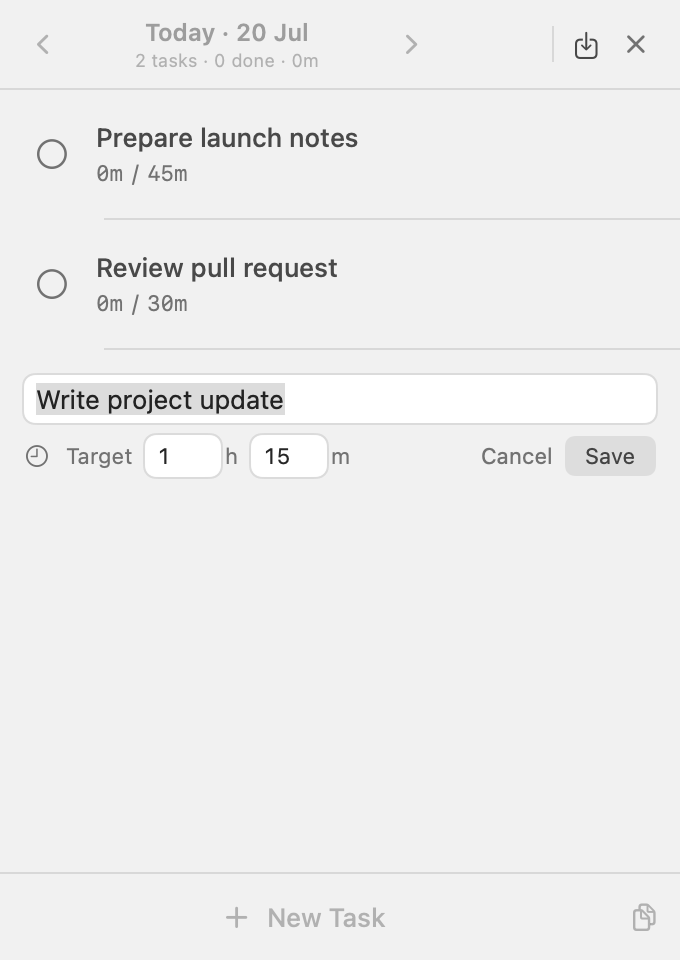
Planning stays inline: name first, optional target second, then Save or Cancel.
Targets are constrained by the selected calendar day. On Today, the available time runs from the current moment to local midnight. Existing unfinished targets also reserve capacity. This prevents a midday 24-hour task—or several smaller tasks—from promising more focus time than the day contains.
For long names, FocusStation uses two lines before truncating the tail. Hover the name to see the complete text.
3. Put the list in working order
Drag any row to reorder it. Completed and unfinished tasks stay in one chronological list; completing a task never moves it into a separate section.
Hover a row to reveal its secondary actions:
- Pencil edits the name or target in the same inline editor.
- Trash deletes the task.
You can also right-click a row for Edit, Delete, Carry, and Repeat actions. Keeping secondary controls behind hover leaves the everyday list compact.
4. Start focusing
Click the play icon on the task you are starting. The running row receives a quiet highlighted background, and the action changes to Pause.
Only one timer runs at a time. Starting another task pauses the current task automatically, preserving its elapsed time. Use Play again to resume it later.
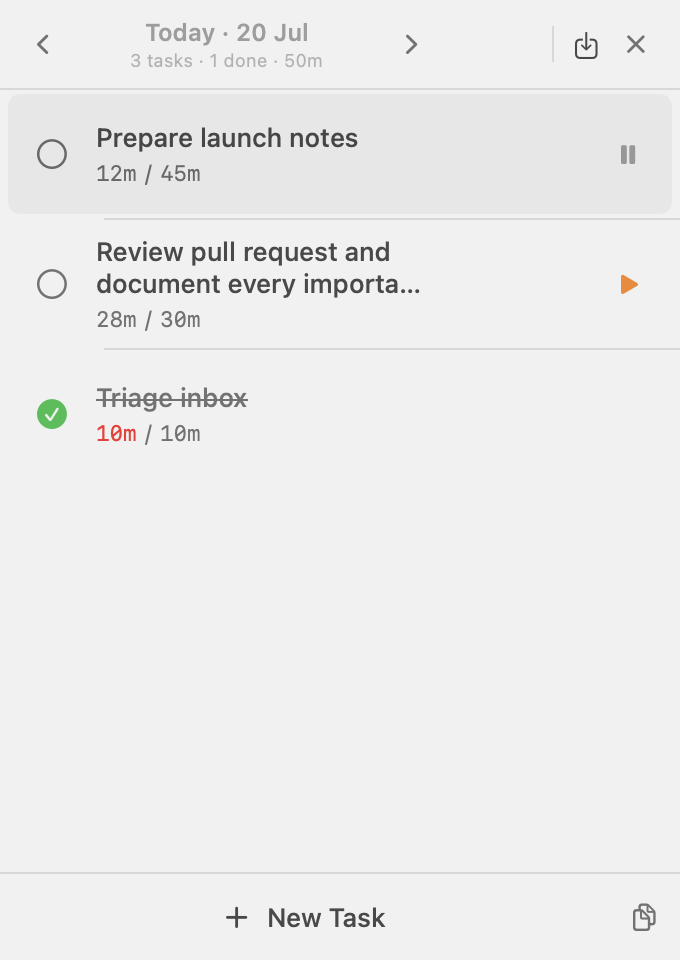
Running, paused, and completed work remains readable without changing row positions.
While a timer is active or paused, the menu bar shows the task icon, a safely truncated name, elapsed time, and its optional target. Elapsed time is green while within the target, orange when paused, and red when overdue. Hover the menu-bar item for the full task, state, and time.
Screen sleep, system sleep, and closing the lid do not pause active work. FocusStation derives elapsed time from the task's absolute start timestamp, so the timer catches up automatically after wake without asking you to resume.
This does not override the daily boundary: if the Mac sleeps across local midnight, FocusStation records time only up to midnight, stops the task, and keeps it on the original date.
5. Complete work without losing context
Click the circle at the start of a row when the task is done. The circle becomes a green check and the name receives a strikethrough, but the task stays exactly where you placed it.
Click the green check again to mark it incomplete. This is useful when a review reopens work later in the same day.
Elapsed time can be greater than the target. That is intentional: the target is an estimate, while elapsed time records what actually happened.
6. Plan tomorrow or inspect a previous day
Use the header carousel to move between dates:
- Today is fully interactive: create, edit, reorder, complete, and run timers.
- Future dates are planning workspaces: create, edit, delete, and reorder tasks, but timers and completion are disabled until that date becomes Today.
- Past dates are read-only history: timers, completion, editing, reordering, and deletion are disabled.
You can also swipe horizontally across the header to move between dates. Navigation is temporarily locked while an inline editor is open, protecting unsaved input from accidental date changes.
7. Carry unfinished work deliberately
Past work never resets or silently moves itself. If a task remains unfinished, open that date and choose what should happen next.
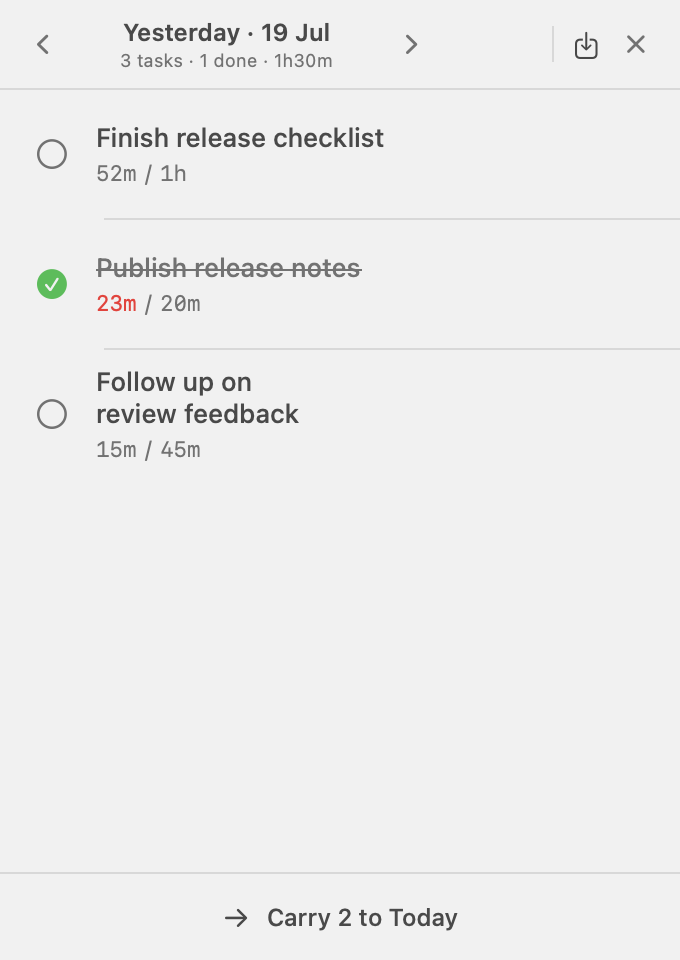
Previous dates are history until you explicitly carry unfinished work forward.
Use Carry to… when the task continues:
- the copied task starts with zero elapsed time;
- its target becomes only the remaining estimate;
- the original task stays unchanged in history.
Use Repeat on… when you want the same task again as fresh work. Repeat keeps the full original target instead of calculating a remainder.
The footer can carry every unfinished task in one action. FocusStation preflights the whole batch: if the destination lacks enough capacity, nothing is partially copied. Repeating the action cannot create duplicate copies from the same task lineage.
8. Export task history as CSV
Click the export icon in the header—the arrow leaving a tray. Choose:
- Export This Day… for only the selected date;
- Export All History… for every dated task.
Choose a destination in the native macOS Save dialog. The CSV contains:
| Column | Meaning |
|---|---|
| Date | Local workspace date in YYYY-MM-DD format |
| Task | Task name |
| Status | Completed or incomplete |
| Tracked Seconds / Time | Exact seconds and a readable duration |
| Target Seconds / Time | Optional estimate in both formats |
| Overtime Seconds | Tracked time beyond the target |
CSV output is deterministic and spreadsheet-safe, including names with commas, quotes, line breaks, or formula-like prefixes.
9. What happens at midnight
FocusStation follows local calendar boundaries, not rolling 24-hour windows. At midnight:
- a running task is stopped exactly at the end of its scheduled date;
- its elapsed time is preserved up to that boundary;
- the task remains on the previous date;
- Today advances to the new local date;
- unfinished work returns only when you explicitly carry it.
This also respects daylight-saving changes. A local day may contain 23, 24, or 25 hours, and planning capacity follows the actual calendar day.
10. A practical daily routine
- Open Today and add the work that matters.
- Give uncertain or risky tasks a target so overtime is visible.
- Drag the list into execution order.
- Start the first task; let FocusStation pause it automatically when you switch.
- Complete tasks in place as the day progresses.
- Before stopping, inspect anything unfinished rather than hiding it.
- The next day, review Yesterday and carry only work that still matters.
- Export a day or the full history whenever you need a retrospective or spreadsheet record.
Keyboard and pointer reference
| Action | Shortcut or control |
|---|---|
| Create a task | ⌘N |
| Save the inline editor | Return |
| Cancel the inline editor | Escape |
| Edit or delete | Hover the row, then use Pencil or Trash |
| More row actions | Right-click the row |
| Reorder | Drag the row |
| Previous / next date | Header arrows or horizontal swipe |
| Return to Today | Click the off-date title |
| Quit FocusStation | × in the header |
Privacy and recovery
FocusStation is local-only. It has no account, analytics, network requests, or cloud synchronization. Tasks and timer state are stored with SwiftData on your Mac.
Quitting or relaunching does not erase tasks. Running work is safely paused when the app terminates. CSV export is the portable history format when you want an external copy.
Ready to use it? Return to the FocusStation download page →